 CodeNomad
The AI coding cockpit for OpenCode: a desktop and browser workspace for developers who run many agents across projects, long conversations and Git worktrees.
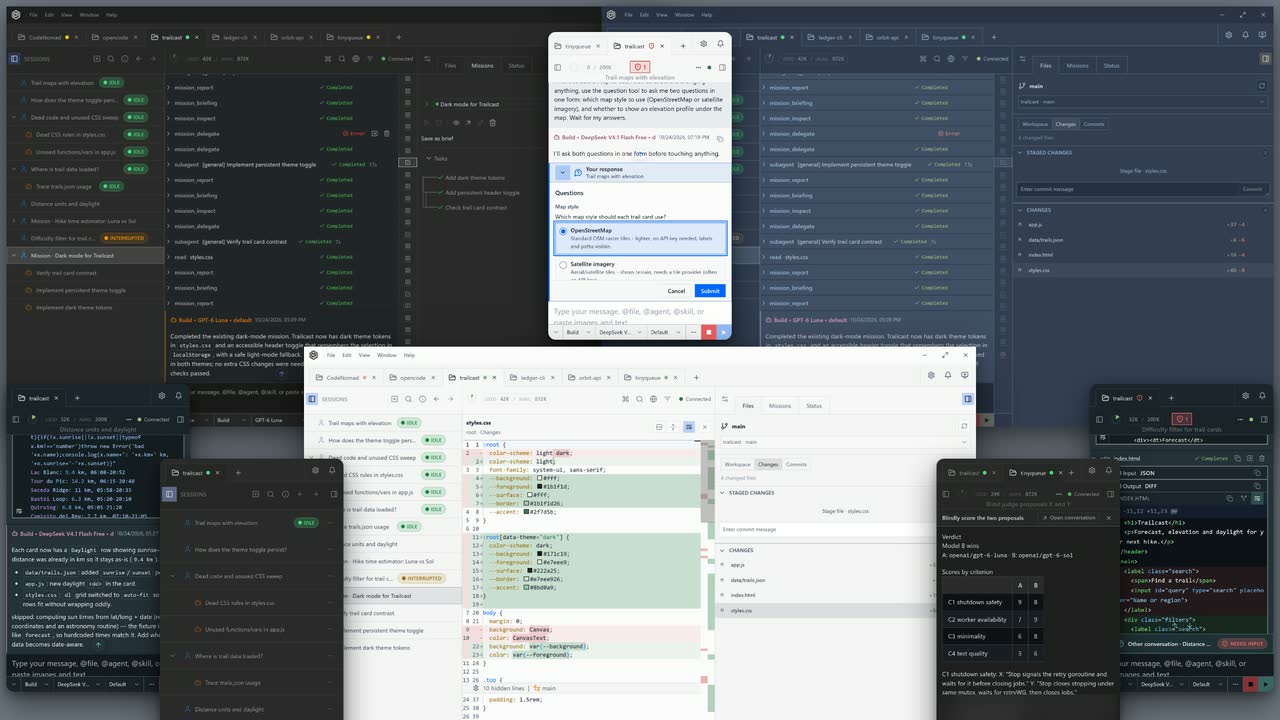
Hand long work to Missions
Describe the work once. The mission's coordinator plans it as a task tree, delegates bounded tasks to native OpenCode conversations and reports results with their evidence. Run once, at chosen times or intervals, or after a verified project change; creation saves a paused Mission for your explicit start. Playbooks cover debugging, product delivery and comparing two models with a blind judge. See Missions.
Keep working from your phone
Remote Control pairs a phone, tablet or another computer with your running CodeNomad backend through a one-use link or QR code, without opening an inbound network port. From the phone you can follow conversations and answer questions and permissions; projects, credentials and agent execution stay on the host. See Remote Control and Mobile and PWA.
Find your way through long histories
Search a conversation's full stored history, or rank results across the opened project and its worktrees, including tool output and thinking when you need them. The message timeline jumps through long sessions without loading every message in between. See History, search and cleanup.
Read this first
CodeNomad connects your workspace to one shared OpenCode background service. Sessions and messages belong to OpenCode; tabs, composer drafts and layout belong to the CodeNomad client. Closing a project tab closes that project in CodeNomad, while sessions continue in OpenCode. Reopen the project to find them again. Closing CodeNomad does not stop OpenCode.
- Check the host requirements and OpenCode setup.
- Open a project, then choose the conversation's Agent, Model and Thinking controls.
- Check the affected scope before changing credentials, restarting a service or deleting history. Other clients can use the same native service.
The public help site works without CodeNomad, its backend or a login. Help → CodeNomad Help on desktop and Open help in the command palette open it separately in the current UI language. Language changes do not translate stored conversations.
Settings opens the native Preferences window in a local desktop client; browser and remote clients use embedded settings. Paths such as Settings → Providers identify the same settings section in either surface.
For a standalone browser workspace on a prepared host, the server guide explains this launch and its authentication/TLS requirements:
npx @neuralnomads/codenomad --generate-token --launch
Choose your client
| Capability | Local desktop | Direct browser or remote server window | Remote Control paired device |
|---|---|---|---|
| Projects, conversations, files and history | Backend's folders and native sessions | Connected server's folders and sessions | Host's authorized workspace surfaces |
| Native Preferences and desktop windows | Available | Browser/remote settings stay in the client | Host-only desktop controls unavailable |
| Session browser preview | Native in Electron and Tauri on Windows, macOS and Linux | Iframe where available | Iframe while the host allows web previews (the default) |
| Native desktop/browser automation | Owned local windows/previews | Not a substitute for native desktop automation | Host-only automation endpoints unavailable |
| Authentication | Local bootstrap or password session | Server password session | Paired-device credential |
| PWA installation | Use the native app or a browser | Browser-dependent; secure context required | Browser-dependent; pairing still required |
For precise limits, see browser previews and SideCars, Remote Control and mobile/PWA. A remote window does not turn your device's filesystem into the server workspace.
Know what owns the state
| Term | Meaning in CodeNomad |
|---|---|
| Project tab / workspace / instance | A CodeNomad connection to an explicitly opened folder; multiple tabs can use the shared service. |
| Conversation / session | Native OpenCode history and execution associated with its directory. |
| Family | A conversation and its recursive subsessions; relevant to moves, activity and Mission controls. |
| Worktree | An owned repository checkout selected for browsing or session placement. Browsing it does not move a conversation. |
| Location | OpenCode's directory-scoped native runtime context; CodeNomad never unloads it when a project closes. |
| CodeNomad backend | The server providing workspace, Git, authentication and client connectivity. Its account and environment determine backend filesystem access. |
| Configuration | CodeNomad settings under the server's config directory; Global/Project OpenCode settings have their own native scope. |
| Window | Its own tabs, navigation, drafts and restored view. Native history is shared, not copied for each window. |
| Desktop data profile | Native/client storage chosen in Settings; it does not automatically isolate OpenCode sessions or every shared configuration. |
The workspace root limits which folders CodeNomad opens; it is not an agent sandbox. Review security before exposing a host or allowing broad tool access.
Explore by task
| Task | Guide |
|---|---|
| Install or serve the workspace | Install, Server reference, Network and TLS |
| Work across checkouts and conversations | Projects, Conversations, Files |
| Find history or safely clean it up | History |
| Set conversation permissions or answer requests | Permission modes, Questions and permissions |
| Coordinate bounded or scheduled work | Missions |
| Configure execution and integrations | OpenCode, Providers, Integrations |
| Connect another device | Remote Control, Security, Mobile |
| Adapt the workspace | Settings, Shortcuts, Voice, Extensions |
| Manage the native application | Desktop, Browser previews and SideCars, Updates |
| Diagnose or contribute | Troubleshooting, Bug reports and source builds, Support CodeNomad |
Monitor work without changing it
The Status panel exposes the active session's provider usage and native background Shells. Conversation status and child activity identify working, compacting and input-waiting sessions. Monitoring a background Shell is distinct from sending a composer Shell request or using a separately hosted terminal SideCar.
- Open Status → Background Shells for the selected conversation's Location (or the open workspace when no conversation is selected).
- Running commands explicitly moved to the background appear on a single line with a discreet status indicator; long commands are truncated. Click the command, or focus it and press Enter or Space, to open its output window.
- Hover or focus the command, or long-press it on a touch screen, for its full command and status, plus the folder, shell, PID, exit code and start/end dates when available. Press Escape or tap outside to close these details.
- The trash button sits to the right, outside the command field. For a running shell, choose Stop and remove and confirm; if a finished entry is still shown, choose Remove and confirm. The trash button acts on the shell without opening its output.
Removing a running Shell stops that process; closing its output window does not.
If a result is uncertain, refresh authoritative state before retrying a mutation; do not submit again merely because a notification or event was missed.